

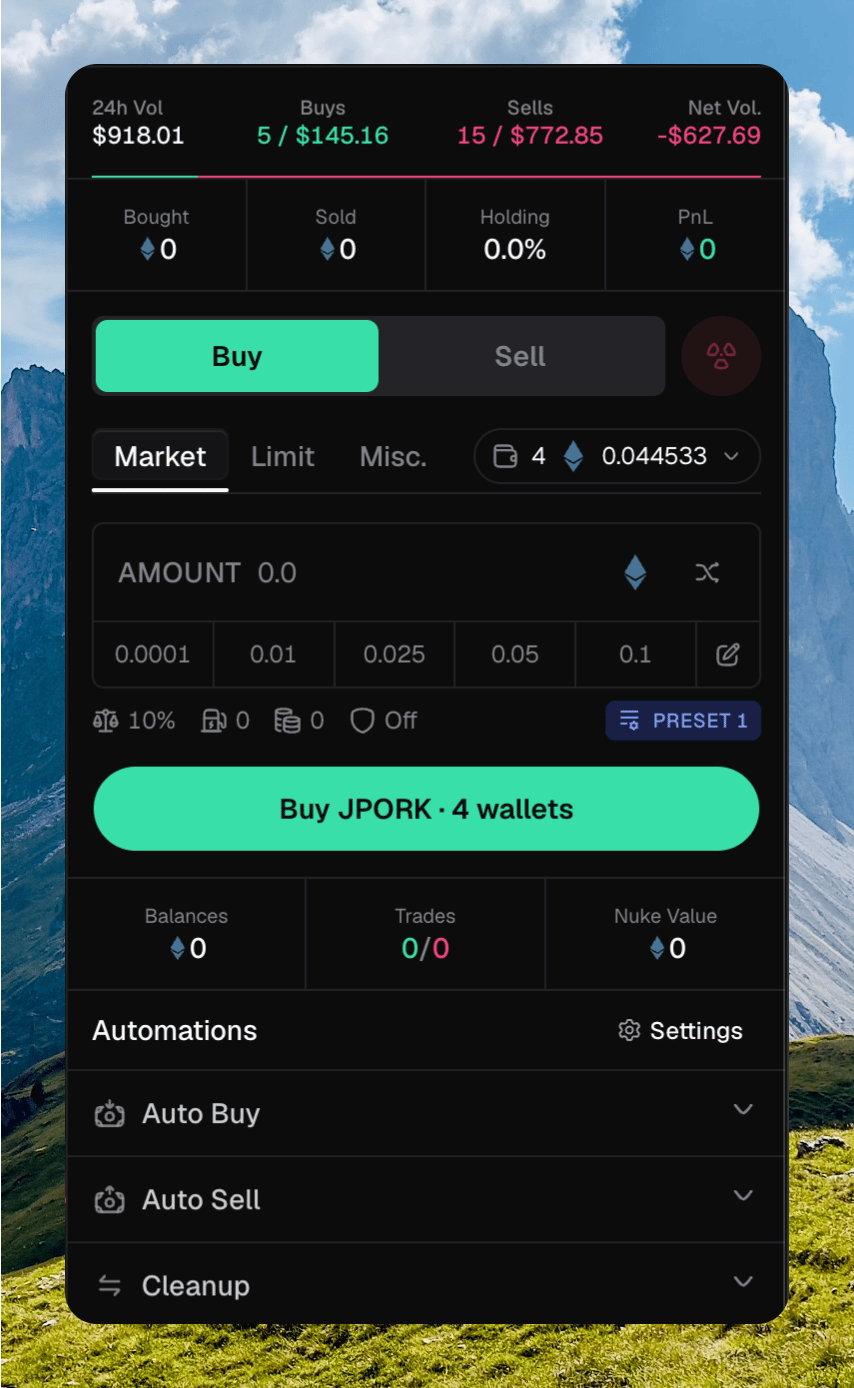
The sidebar with Bought / Sold / Holding / PnL, Buy selected, amount, Randomize, presets, and the submit button
Placing a trade
1
Pick a side
Click Buy or Sell, or press B / ⇧ S. Stay on Market.
2
Select wallets
Open the wallet picker. Chipper trades from every wallet you check.
3
Set the amount
Type an amount, click a preset chip, or click Randomize. Randomize fills a rounded amount between that side’s min and max. Press 1–9 to apply a chip by position. Press U to switch native and USD.
4
Submit
Click Buy or Sell , or press ⌘ Enter. Several wallets append · N wallets.
Selecting wallets
The wallet picker shows how many wallets are selected, plus their native balance. If you are trading a quote token, it shows that balance too.- Select All / Unselect All
- Select All with Balance / Unselect All with Balance
- Per-wallet checkboxes. The developer wallet shows a Dev badge.
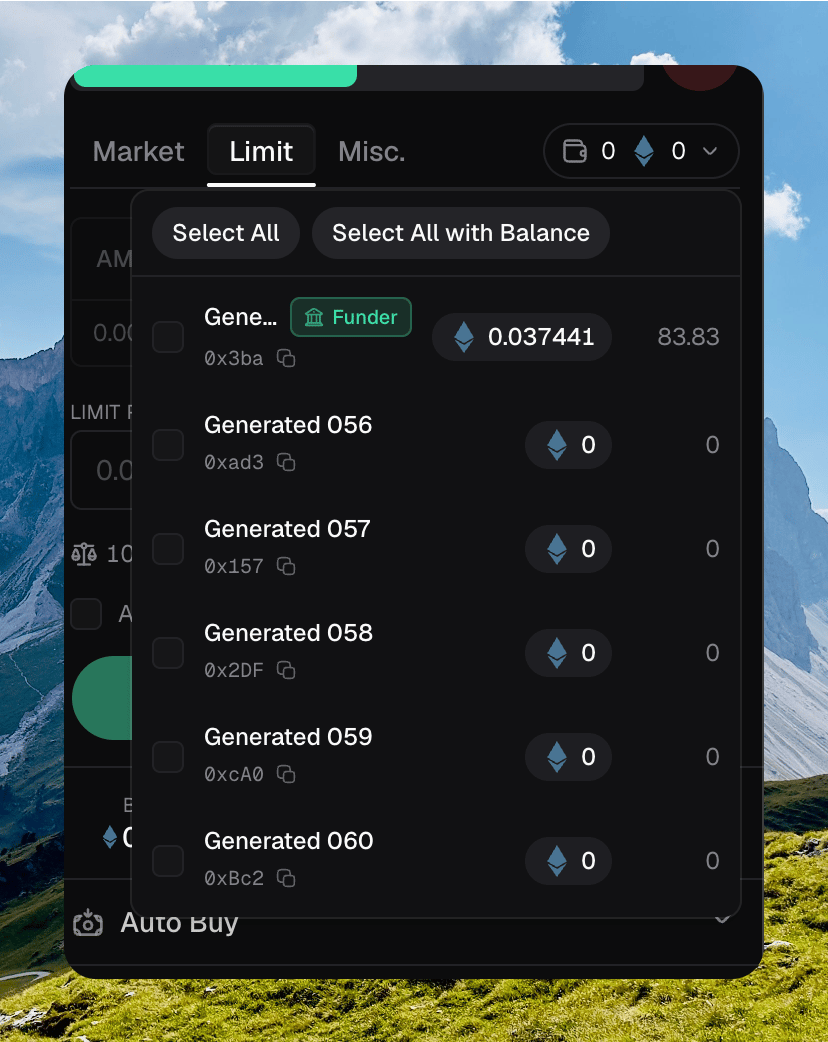
The wallet picker open, with Select All and wallets listed
Slippage and execution
The row under the amount opens Trading Settings. Those values come from the active trading preset.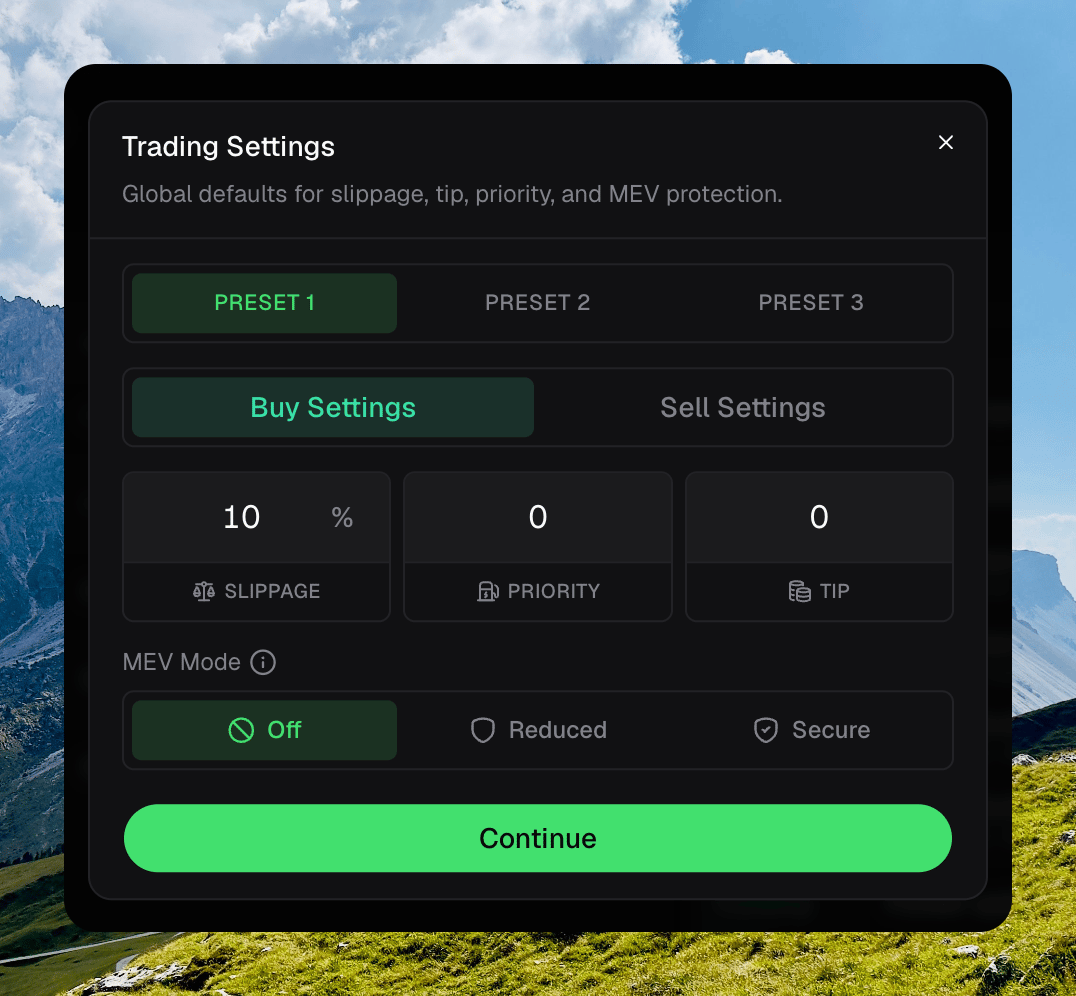
Trading Settings on Preset 1, Buy Settings
Reading the result
Chipper toasts as the trade lands.- Submitting trade… while it goes out.
- Trade submitted with an estimated fill. Several wallets show
{submitted}/{total} trades submitted. - Buy confirmed or Sell confirmed when the fill lands. Failures toast Trade failed or Trade reverted.