

Opening Tokens: Launch sidebar, token table, and Strategies
The token table
Each row is one token. Click a row to open its token page.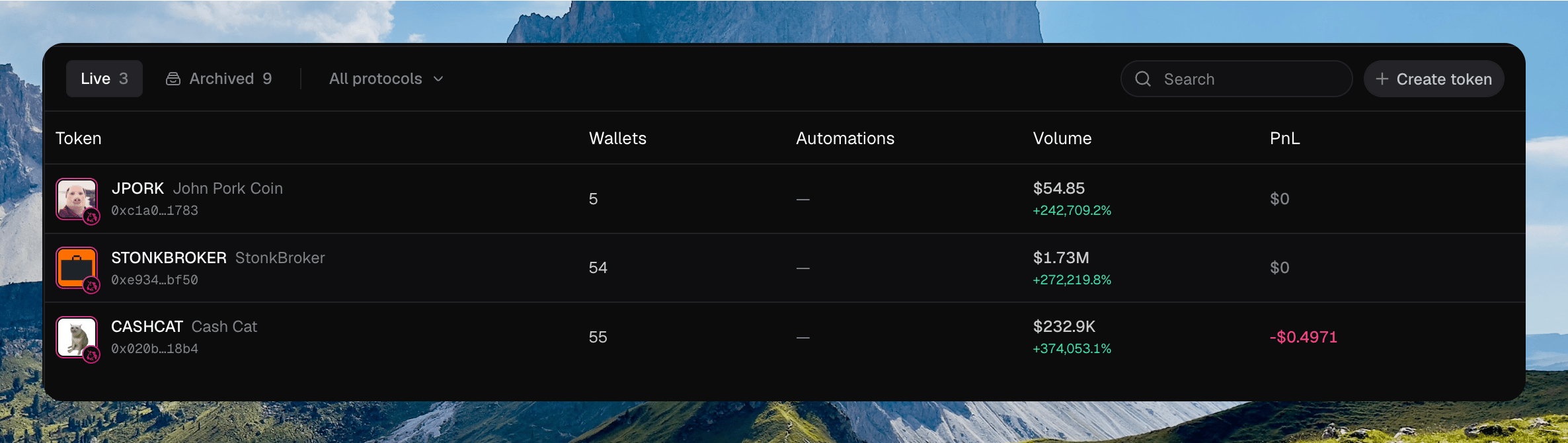
Token rows with ticker, wallets, automations, volume, and PnL
Filters
The toolbar above the table changes which tokens you see.- Live and Archived switch the list. Counts sit on each chip.
- All chains, plus Solana, BNB, and Robinhood, appear when you have tokens on more than one chain.
- All protocols opens a multi-select when more than one protocol is on the list.
- Search filters by name or contract address. Press ⌘ F to focus it.
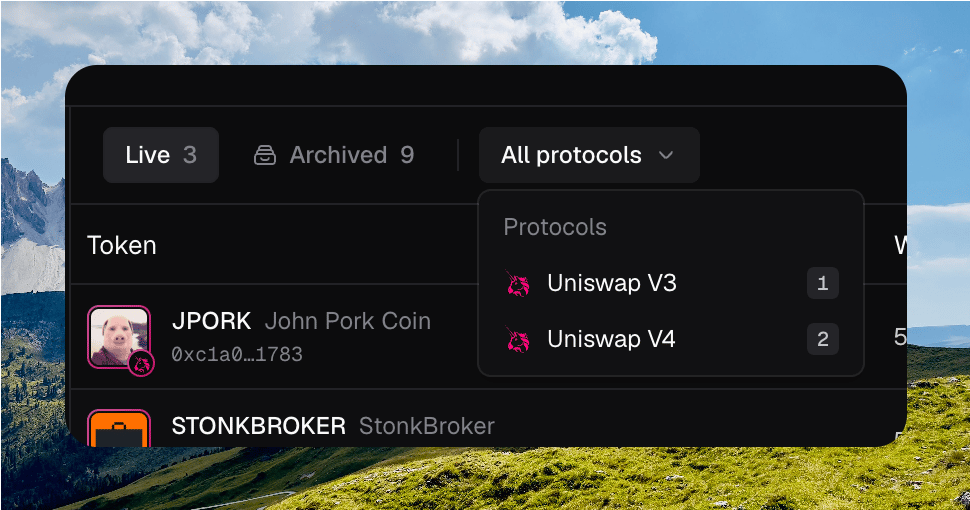
The toolbar with Live / Archived, All protocols open, Search, and Create token
Right-click a row for Copy address, Open explorer, and Archive. The same menu sits on the ⋯ at the end of the row.
Importing a live token
Import live opens a token you did not launch. It is not a launch. The token stays view-only, and off this list, until you add a wallet.1
Open Import live
Click Import live in the Launch sidebar, or paste a contract into Search when nothing in the list matches.
2
Paste the contract
The dialog asks for a Contract address. Chipper looks up the live token and shows the chain it found.
3
Import
Click Import token. Chipper opens the token page. Add a wallet there to create the dashboard.
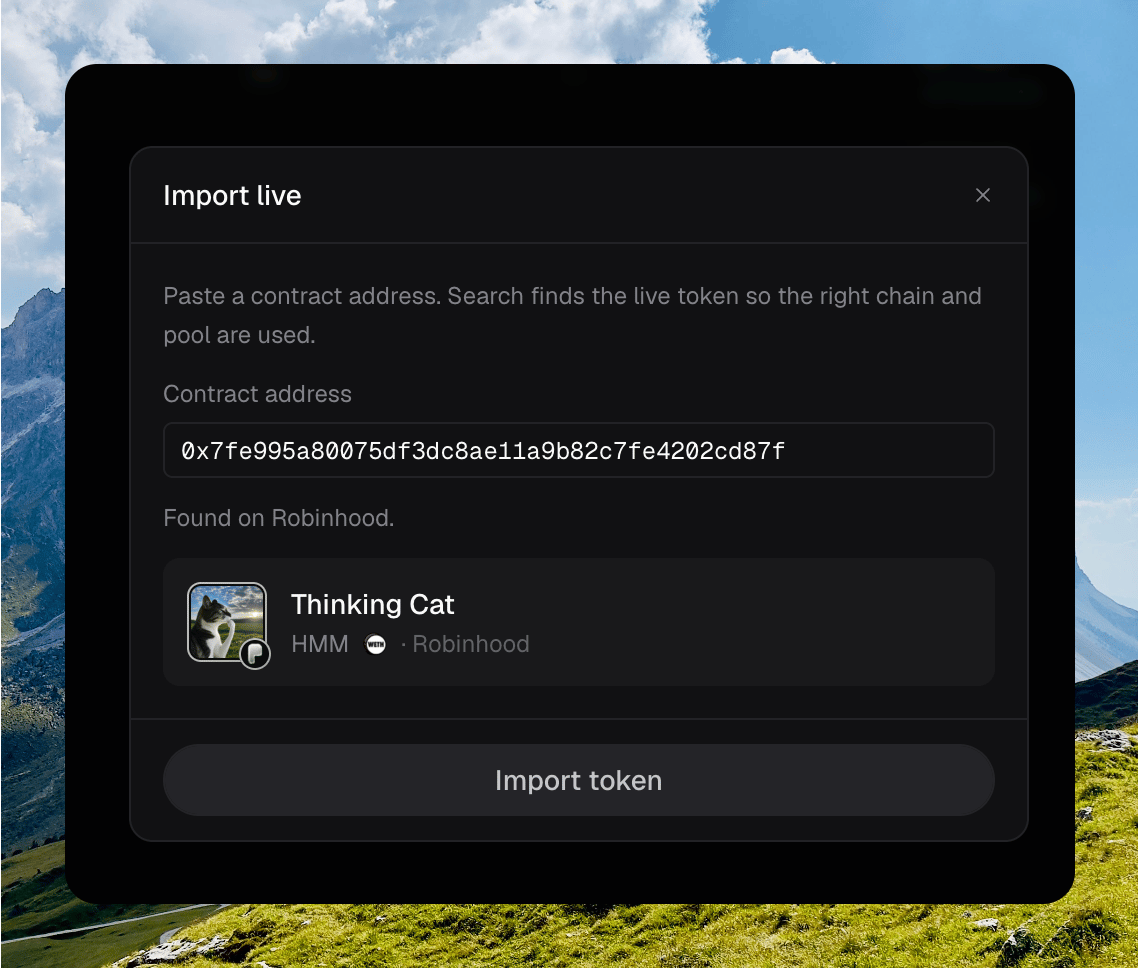
The Import live dialog with a contract pasted and a token preview
Pasting a contract into Import live and importing the token
Strategies sidebar
The right column is labeled Strategies and tagged Soon. Automations do not open from this list yet. Click a token to configure automations on its page. The Automations column is a count only.Archiving tokens
Archive hides a token from Live. Switch to Archived to see it again, then Unarchive to restore it.Archiving a token and switching to Archived
Where to go next
Token Page
Chart, trades, holders, and the trade sidebar.
Launch
Deploy a token onto this list.
Quick Trade
Buy and sell from a wallet row.
PnL
What the PnL column counts.