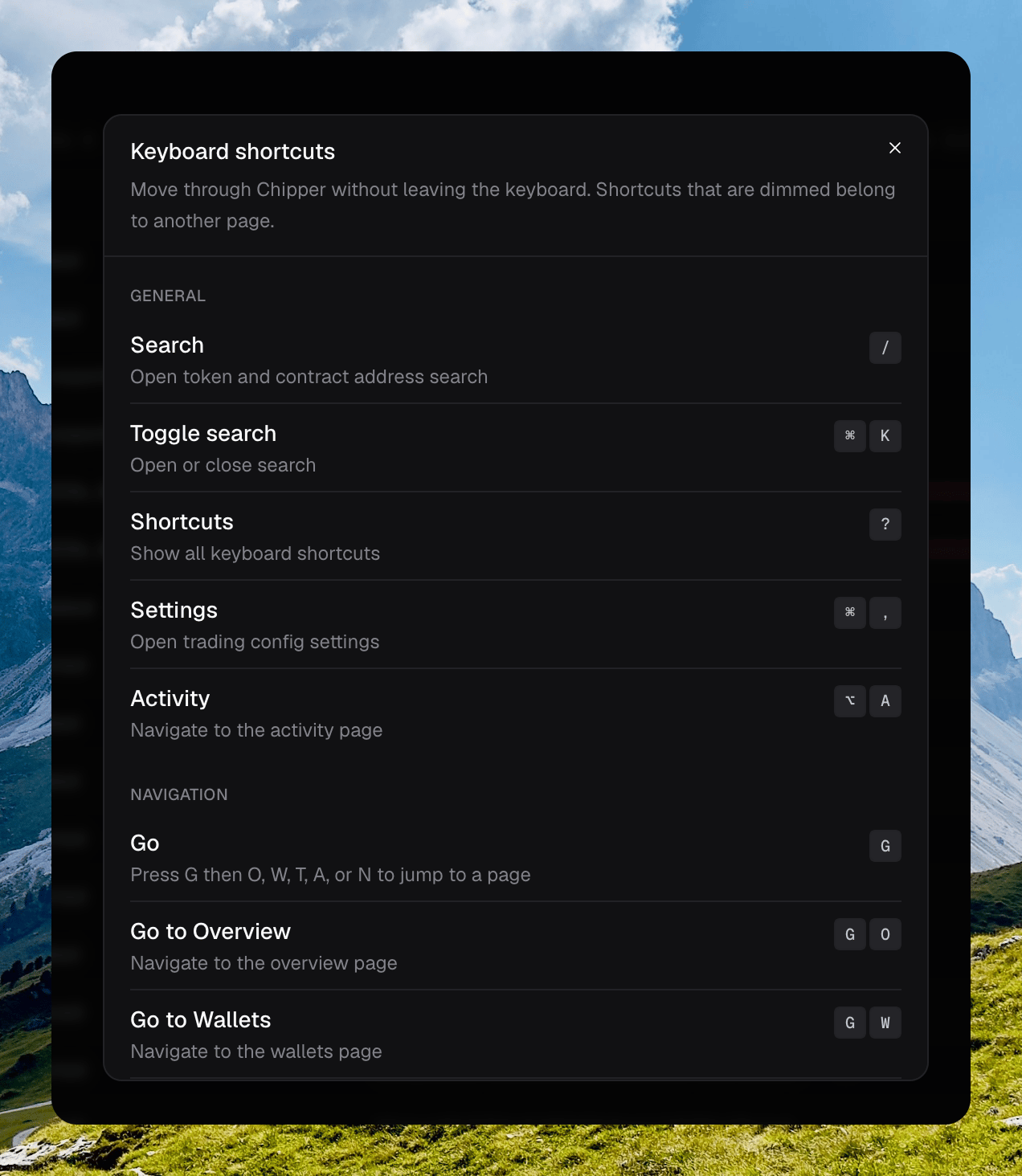
Opening Keyboard shortcuts and scrolling the list

The Keyboard shortcuts dialog, grouped by category

Documentation Index
Fetch the complete documentation index at: /llms.txt
Use this file to discover all available pages before exploring further.
Drive Chipper without the mouse.
Opening Keyboard shortcuts and scrolling the list

The Keyboard shortcuts dialog, grouped by category

| Shortcut | Keys | What it does |
|---|---|---|
| Search | / | Open search. |
| Toggle search | ⌘ K | Open or close search. |
| Shortcuts | ? | Show this list. |
| Settings | ⌘ , | Open Trading Settings. |
| Activity | ⌥ A | Go to Activity. |
| Shortcut | Keys | What it does |
|---|---|---|
| Navigate up | ↑ or K | Move the cursor up. |
| Navigate down | ↓ or J | Move the cursor down. |
| Jump to top | Home | Move to the first row. |
| Jump to bottom | End | Move to the last row. |
| Toggle | Space | Toggle the row under the cursor. |
| Extend selection | ⇧ ↑ or ⇧ ↓ | Move the cursor and add that row. |
| Open | Enter | Open the row under the cursor. |
| Select | S | Select or unselect the row. Hold and move to paint the same action. |
| Select all | S then A, or ⌘ A | Select every selectable row. |
| Unselect all | Escape | Clear the selection. |
| Do | D | Open the quick actions menu for the current row. |
| Filter | ⌘ F | Focus the filter on Tokens or Activity. |
| Rename | R | Rename the item under the cursor. |
| Archive | X | Archive the row or the current selection. |
| Shortcut | Keys | What it does |
|---|---|---|
| Select folder | F then 1–9 | Hold F and press 1–9 to select a folder by position. |
| Clear folder | F then X | Hold F and press X to clear the folder filter. |
| Next folder | F then N | Hold F and press N for the next folder. |
| Previous folder | F then P | Hold F and press P for the previous folder. |
| New folder | ⌥ N | Create a folder. |
| Shortcut | Keys | What it does |
|---|---|---|
| Buy side | B | Switch the trade form to Buy. |
| Sell side | ⇧ S | Switch the trade form to Sell. |
| Market order | M | Switch to the market order tab. |
| Limit order | L | Switch to the limit order tab. |
| Misc. actions | ⇧ M | Switch to the lock and burn tab. |
| Amount preset | 1–9 | Apply an amount chip by position. |
| Submit | ⌘ Enter | Submit the current trade or misc action. |
| Toggle unit | U | Switch amounts between native and USD. |
| Trades panel | T | Show the trades tab. |
| Wallets panel | W | Show the wallets tab. |
| Pools panel | P | Show the pools tab. |
| History panel | H | Show the history tab. |
| Copy address | C | Copy the contract address. |
| Previous / next token | [ or ] | Move to the previous or next token in the sidebar. |
| Toggle sidebar | ⌘ B | Collapse or expand the token list sidebar. |
| Shortcut | Keys | What it does |
|---|---|---|
| Trading preset | ⌥ 1–3 | Switch the active trading preset. |