

Trading presets
You get three slots: Preset 1, Preset 2, and Preset 3. The active slot is the one every quick-trade chip and trade sidebar uses. Switch slots from the footer chip, the token page, Settings → Trading, or ⌥ 1–3.Switching trading presets from the footer chip
- Trading Settings (⌘ ,, or the footer chip) sets slippage, priority, tip, and MEV Mode per buy and sell side. MEV Mode is Off, Reduced, or Secure.
- Settings → Trading sets the amount chips (one to eight per side), percent versus a fixed native amount, Randomize min and max, and Instant Trade.
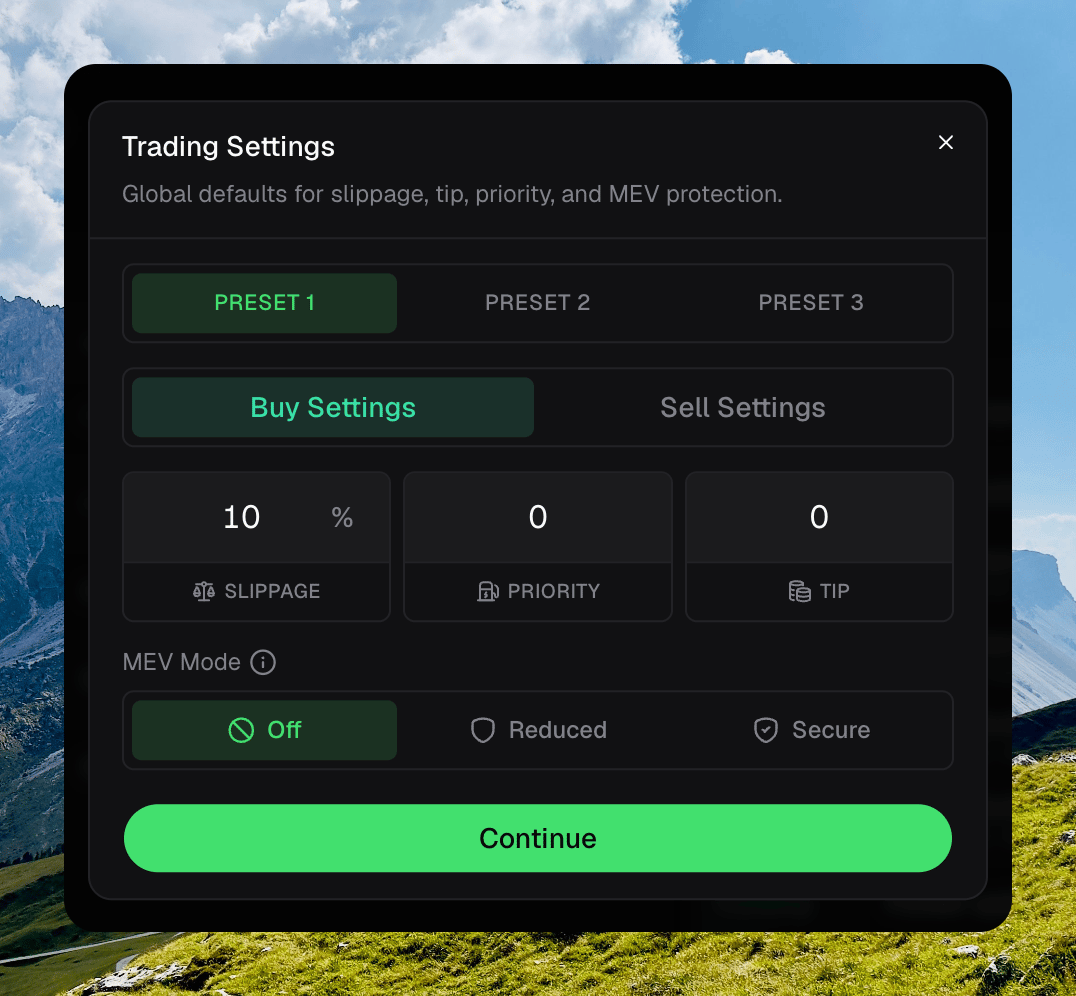
Trading Settings on Preset 1, Buy Settings
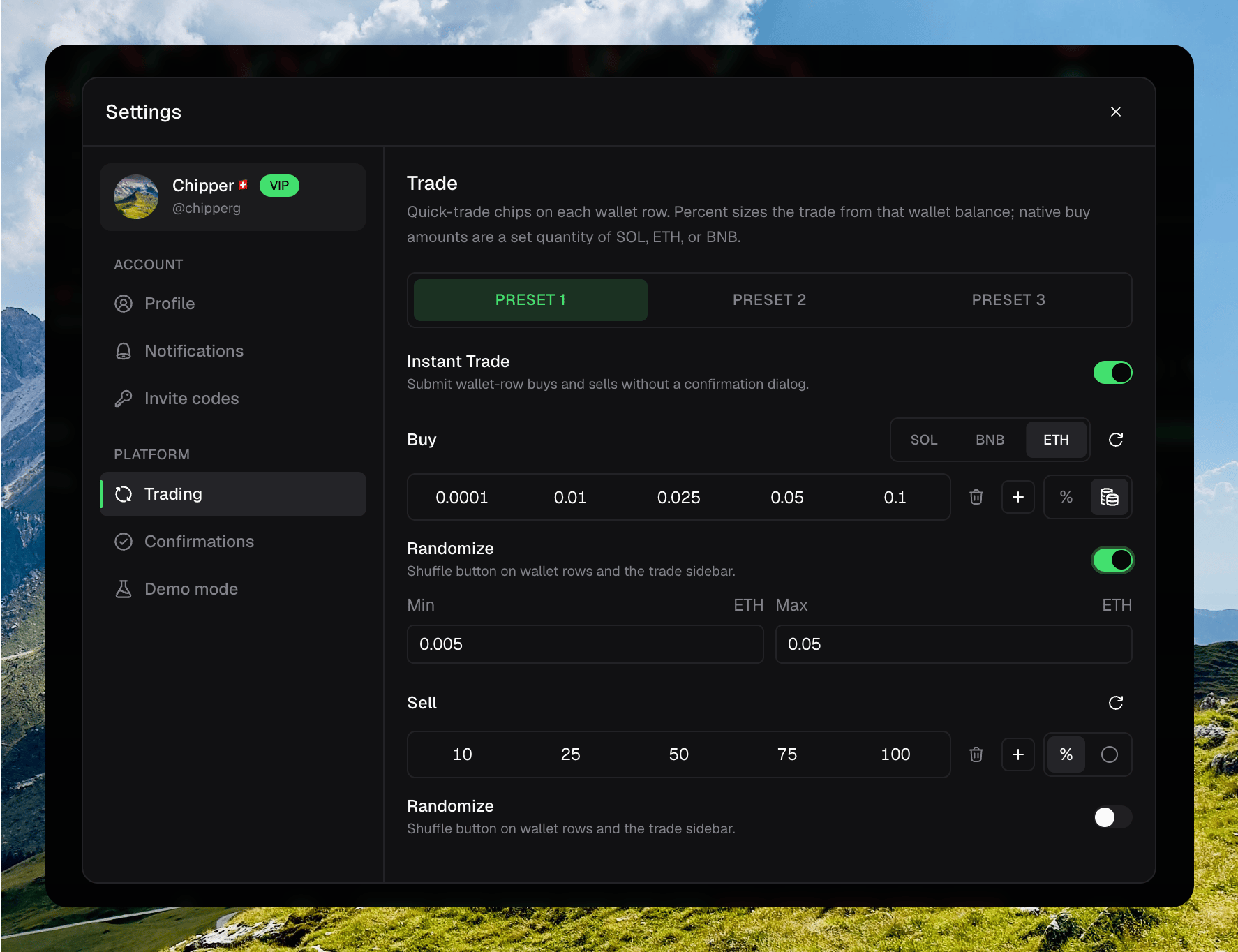
Settings → Trading: Instant Trade, amount chips, and Randomize
Automation presets
On a token page, open an automation and click Reuse past preset. You can save and reuse presets for Auto Buy, Auto Sell, and Cleanup. Sniper Guard can apply a saved preset. It does not save a new one from the UI.Saving an Auto Buy preset and reusing it
1
Configure the automation
Fill in the strategy or bot the way you want it.
2
Save the preset
Click the bookmark. Name it, then Save preset.
3
Reuse it
On any token, open Reuse past preset, pick the row, and apply it.
Applying a Sniper Guard preset fills the sniper fields. Whitelist entries stay as they are.