

How drafts work
Chipper autosaves while you edit. The first save happens after you leave the Token step, or as soon as you fill in a token detail such as name, ticker, image, description, or a social. The URL becomes?draft= plus the draft id. The footer shows Saving, Draft saved, Unsaved changes, or Save failed.
Drafts follow your account. You must be signed in to save or open them.
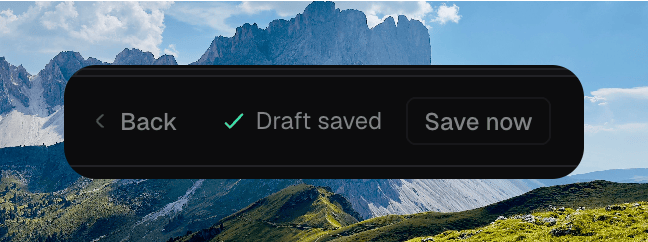
The launch footer with Draft saved and Save now
Saving and resuming
Keep editing and Chipper saves in the background. Click Save now if you want to force a write. Chipper asks you to Sign in to save drafts or Add token details before saving when those are missing. Resume a draft from the Launch sidebar on Tokens. Each row shows the ticker or name and how recently it was updated. Click a row to open/tokens/new?draft=… at the same step you left.
A draft that fails to load shows Couldn’t load this draft and Start a new launch.
After a successful launch, Chipper clears that draft. A failed launch can leave the draft in place so you can retry.
Opening a draft from the Launch sidebar
Managing drafts
The sidebar header reads Drafts (N).- Open the row menu, or right-click the row, and click Delete to remove one draft.
- REMOVE deletes every draft. Hold to confirm Remove all drafts. That cannot be undone.
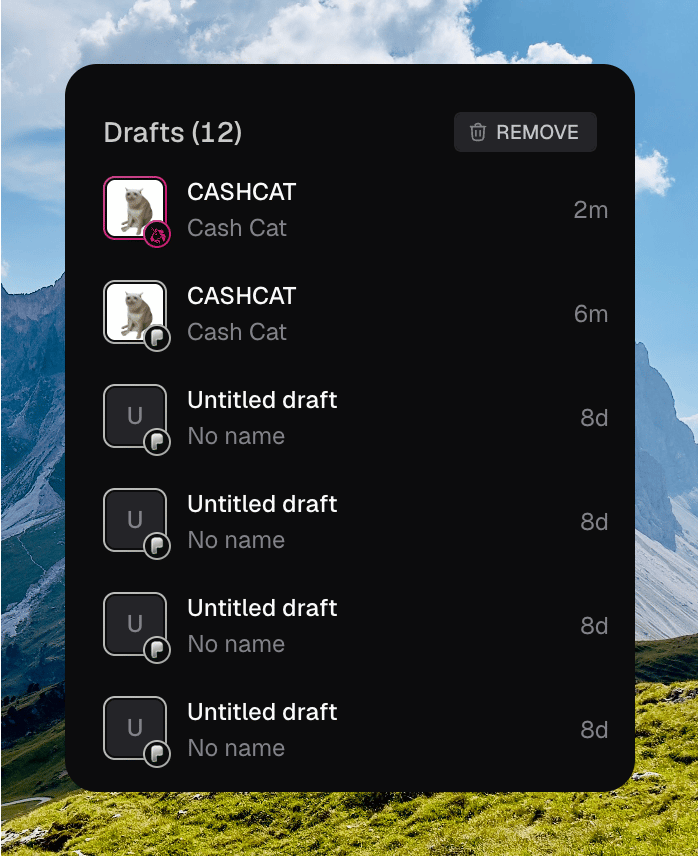
The Launch sidebar Drafts list with REMOVE