> ## Documentation Index
> Fetch the complete documentation index at: https://docs.chipperg.xyz/llms.txt
> Use this file to discover all available pages before exploring further.
# Trade Settings
> The trade defaults every buy and sell starts from.
Trade Settings is where you edit the chips on each wallet row, and whether those chips ask before they submit.
Open **Settings → Trading**, or edit presets from a chip's pencil. Slippage, priority, tip, and MEV live in a different dialog: **Trading Settings** (**⌘ ,**). See [Presets](/platform/presets).
 ## Amount presets
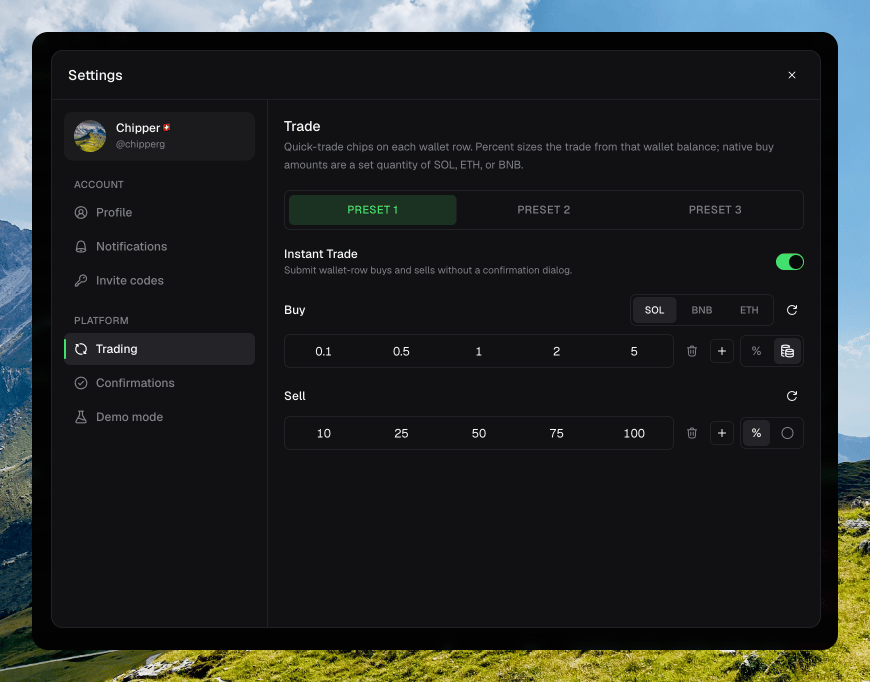
You get three slots: **Preset 1**, **Preset 2**, and **Preset 3**. The active slot is the one [quick-trade chips](/trading/quick-trade) and the [trade sidebar](/trading/trade-sidebar) use.
Each side has one to eight chips. **Add** a value, **Remove** the last one, or **Reset** that side.
Switch slots from this page, the footer chip, the token page, or **⌥ 1–3**.
## Amount mode
Each side has a **%** toggle and a fixed toggle.
* **%** sizes from that wallet's balance.
* The coin icon is a **native currency amount** on buy, or a **fixed token amount** on sell.
On buy, fixed mode adds **SOL**, **BNB**, and **ETH**. Each currency keeps its own chip values.
## Instant Trade
**Instant Trade** submits wallet-row buys and sells without a confirmation dialog.
Turn it off to get **Confirm buy** and **Confirm sell** back. This setting stays on this device.
## Confirmations
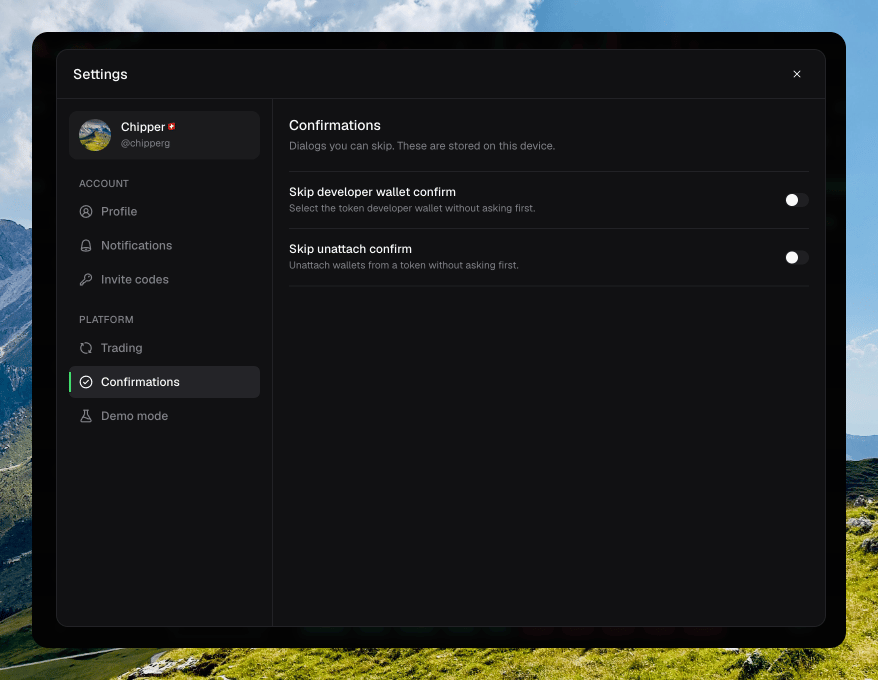
Other skippable dialogs live under **Settings → Confirmations**. Those are also stored on this device.
* **Skip developer wallet confirm**
* **Skip unattach confirm**
## Amount presets
You get three slots: **Preset 1**, **Preset 2**, and **Preset 3**. The active slot is the one [quick-trade chips](/trading/quick-trade) and the [trade sidebar](/trading/trade-sidebar) use.
Each side has one to eight chips. **Add** a value, **Remove** the last one, or **Reset** that side.
Switch slots from this page, the footer chip, the token page, or **⌥ 1–3**.
## Amount mode
Each side has a **%** toggle and a fixed toggle.
* **%** sizes from that wallet's balance.
* The coin icon is a **native currency amount** on buy, or a **fixed token amount** on sell.
On buy, fixed mode adds **SOL**, **BNB**, and **ETH**. Each currency keeps its own chip values.
## Instant Trade
**Instant Trade** submits wallet-row buys and sells without a confirmation dialog.
Turn it off to get **Confirm buy** and **Confirm sell** back. This setting stays on this device.
## Confirmations
Other skippable dialogs live under **Settings → Confirmations**. Those are also stored on this device.
* **Skip developer wallet confirm**
* **Skip unattach confirm**
 ## Device versus account
| Setting | Where it lives |
| --------------------------------------------------- | ------------------------------------------------------------------- |
| Amount chips, amount mode, per-currency buy amounts | Your account. The three presets sync. |
| Slippage, priority, tip, MEV Mode | Your account, in **Trading Settings**. |
| Active preset | This device. |
| Instant Trade | This device. |
| Skip developer / unattach confirm | This device. |
| ETH / USDG trade mode | This device, on Robinhood only. Set it in the app header, not here. |
## Device versus account
| Setting | Where it lives |
| --------------------------------------------------- | ------------------------------------------------------------------- |
| Amount chips, amount mode, per-currency buy amounts | Your account. The three presets sync. |
| Slippage, priority, tip, MEV Mode | Your account, in **Trading Settings**. |
| Active preset | This device. |
| Instant Trade | This device. |
| Skip developer / unattach confirm | This device. |
| ETH / USDG trade mode | This device, on Robinhood only. Set it in the app header, not here. |