> ## Documentation Index
> Fetch the complete documentation index at: https://docs.chipperg.xyz/llms.txt
> Use this file to discover all available pages before exploring further.
# Tokens
> Your token list and how tokens get onto it.
Tokens is the list of every token you launched or imported. Open it from the header, or press **G** then **T**.
The page has three columns: **Launch** on the left, the **token table** in the center, and **Strategies** on the right.
## The token table
Each row is one token. Click a row to open its [token page](/trading/token-page).
| Column | What it shows |
| --------------- | --------------------------------------------------------------------------------------------------------- |
| **Token** | Image, ticker, name, and a truncated address you can copy. Tokens you launched show a **Launched** badge. |
| **Wallets** | How many of your wallets are attached to this token. |
| **Automations** | How many automations are on the token. Shows **—** when there are none. |
| **Volume** | 24h volume in USD, with 24h change underneath. |
| **PnL** | Realized profit and loss for the token, in USD. |
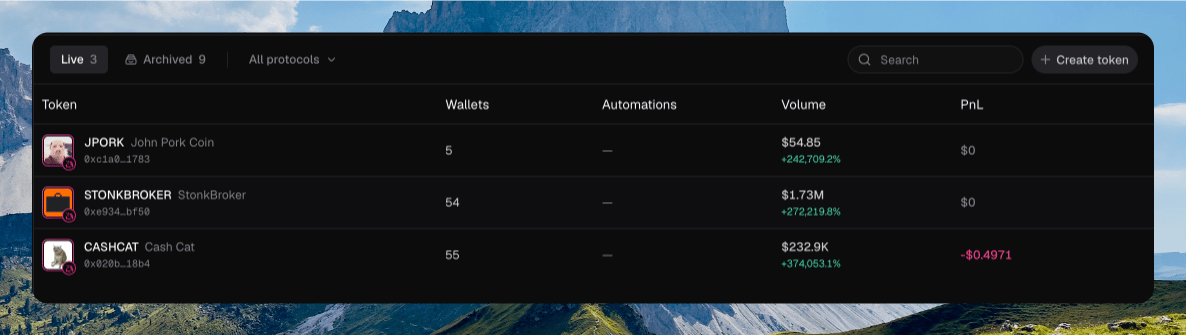 The list is not sortable. **Load more** appears at the bottom when there are more rows.
If you have no tokens yet, the empty state says **No tokens in this view** and tells you to create or open one.
### Filters
The toolbar above the table changes which tokens you see.
* **Live** and **Archived** switch the list. Counts sit on each chip.
* **All chains**, plus **Solana**, **BNB**, and **Robinhood**, appear when you have tokens on more than one chain.
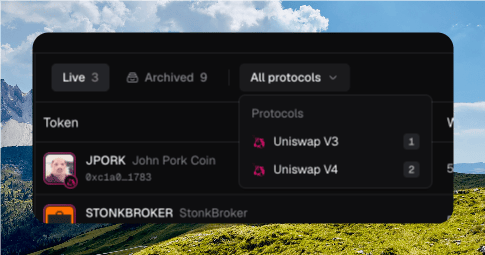
* **All protocols** opens a multi-select when more than one protocol is on the list.
* **Search** filters by name or contract address. Press **⌘ F** to focus it.
The list is not sortable. **Load more** appears at the bottom when there are more rows.
If you have no tokens yet, the empty state says **No tokens in this view** and tells you to create or open one.
### Filters
The toolbar above the table changes which tokens you see.
* **Live** and **Archived** switch the list. Counts sit on each chip.
* **All chains**, plus **Solana**, **BNB**, and **Robinhood**, appear when you have tokens on more than one chain.
* **All protocols** opens a multi-select when more than one protocol is on the list.
* **Search** filters by name or contract address. Press **⌘ F** to focus it.
 **Create token** starts a [launch](/launch/launch). The Launch sidebar also has **New token**, **Clone CA**, **Import live**, and your [drafts](/launch/drafts).
Right-click a row for **Copy address**, **Open explorer**, and **Archive**. The same menu sits on the **⋯** at the end of the row.
## Importing a live token
**Import live** tracks a token you did not launch. It is not a launch.
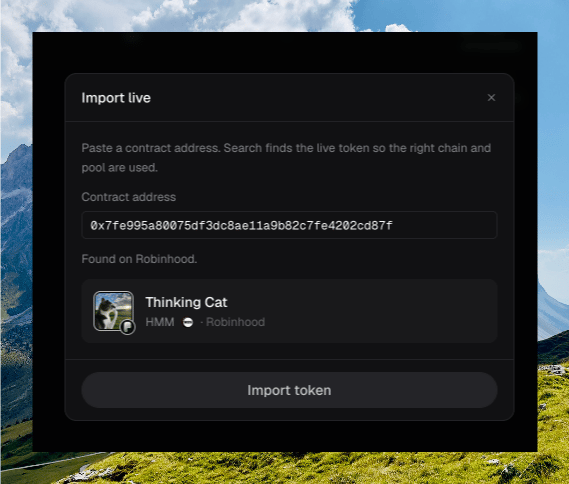
Click **Import live** in the Launch sidebar, or paste a contract into Search when nothing in the list matches.
The dialog asks for a **Contract address**. Chipper looks up the live token and shows the chain it found.
Click **Import token**. Chipper opens the [token page](/trading/token-page).
**Create token** starts a [launch](/launch/launch). The Launch sidebar also has **New token**, **Clone CA**, **Import live**, and your [drafts](/launch/drafts).
Right-click a row for **Copy address**, **Open explorer**, and **Archive**. The same menu sits on the **⋯** at the end of the row.
## Importing a live token
**Import live** tracks a token you did not launch. It is not a launch.
Click **Import live** in the Launch sidebar, or paste a contract into Search when nothing in the list matches.
The dialog asks for a **Contract address**. Chipper looks up the live token and shows the chain it found.
Click **Import token**. Chipper opens the [token page](/trading/token-page).
 Imported tokens sit on the list without a **Launched** badge.
## Strategies sidebar
The right column is labeled **Strategies** and tagged **Soon**. Automations do not open from this list yet.
Click a token to configure [automations](/automations/automations) on its page. The **Automations** column is a count only.
## Archiving tokens
**Archive** hides a token from **Live**. Switch to **Archived** to see it again, then **Unarchive** to restore it.
Tokens archive automatically after 30 days.
## Where to go next
Chart, trades, holders, and the trade sidebar.
Deploy a token onto this list.
Buy and sell from a wallet row.
What the PnL column counts.
Imported tokens sit on the list without a **Launched** badge.
## Strategies sidebar
The right column is labeled **Strategies** and tagged **Soon**. Automations do not open from this list yet.
Click a token to configure [automations](/automations/automations) on its page. The **Automations** column is a count only.
## Archiving tokens
**Archive** hides a token from **Live**. Switch to **Archived** to see it again, then **Unarchive** to restore it.
Tokens archive automatically after 30 days.
## Where to go next
Chart, trades, holders, and the trade sidebar.
Deploy a token onto this list.
Buy and sell from a wallet row.
What the PnL column counts.