> ## Documentation Index
> Fetch the complete documentation index at: https://docs.chipperg.xyz/llms.txt
> Use this file to discover all available pages before exploring further.
# Presets
> Save a configuration once and reuse it.
Chipper has two kinds of preset you can reuse: **trading presets** for every buy and sell, and **automation presets** for a saved strategy.
Reusable launch configs are [drafts](/launch/drafts), not presets.
## Trading presets
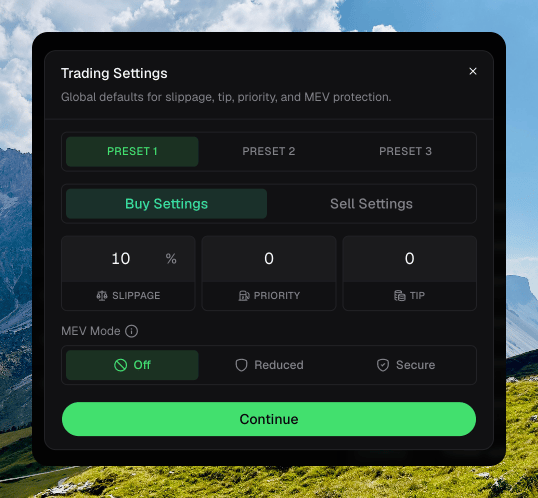
You get three slots: **Preset 1**, **Preset 2**, and **Preset 3**. The active slot is the one every [quick-trade chip](/trading/quick-trade) and [trade sidebar](/trading/trade-sidebar) uses.
Switch slots from the footer chip, the token page, **Settings → Trading**, or **⌥ 1–3**.
Two dialogs edit the same three slots.
* **Trading Settings** (**⌘ ,**, or the footer chip) sets slippage, priority, tip, and **MEV Mode** per buy and sell side. MEV Mode is **Off**, **Reduced**, or **Secure**.
* **Settings → Trading** sets the amount chips (one to eight per side), percent versus a fixed native amount, and [Instant Trade](/trading/trade-settings).
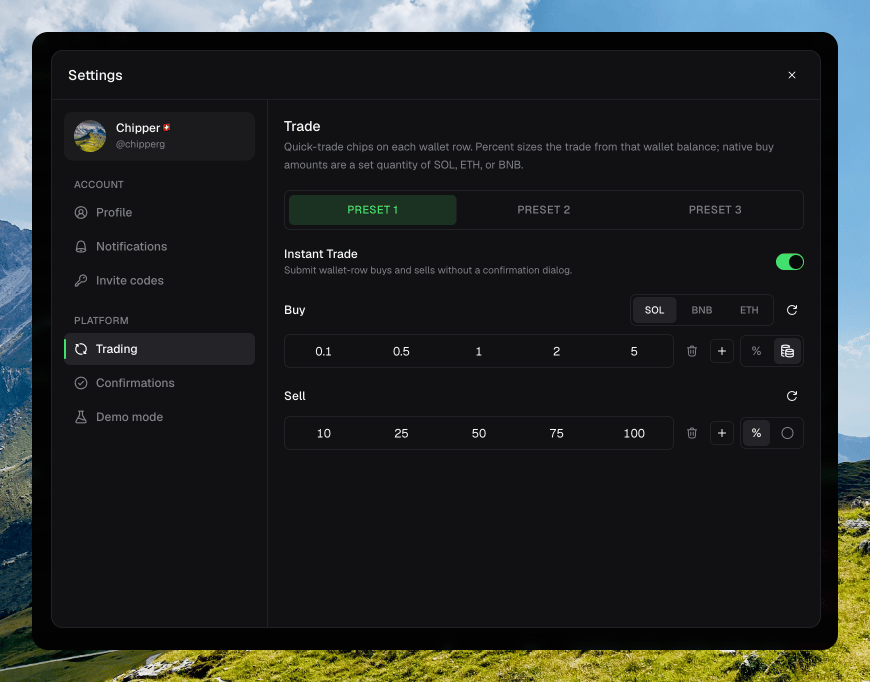 Percent sizes a trade from that wallet's balance. Fixed buy amounts are a set quantity of SOL, ETH, or BNB.
The three slots sync to your account. The active slot stays on this device.
## Automation presets
On a [token page](/trading/token-page), open an automation and click **Reuse past preset**.
You can save and reuse presets for [Auto Buy](/automations/auto-buy), [Auto Sell](/automations/auto-sell), [Volume Bot](/automations/volume-bot), [Bumper Bot](/automations/bumper-bot), and [Cleanup](/automations/cleanup). [Sniper Guard](/automations/sniper-guard) can apply a saved preset. It does not save a new one from the UI.
Fill in the strategy or bot the way you want it.
Click the bookmark. Name it, then **Save preset**.
On any token, open **Reuse past preset**, pick the row, and apply it.
The preset table shows the name, a short config summary, and when you last used it. **Remove preset** deletes that row.
Applying a Sniper Guard preset fills the sniper fields. Whitelist entries stay as they are.
Percent sizes a trade from that wallet's balance. Fixed buy amounts are a set quantity of SOL, ETH, or BNB.
The three slots sync to your account. The active slot stays on this device.
## Automation presets
On a [token page](/trading/token-page), open an automation and click **Reuse past preset**.
You can save and reuse presets for [Auto Buy](/automations/auto-buy), [Auto Sell](/automations/auto-sell), [Volume Bot](/automations/volume-bot), [Bumper Bot](/automations/bumper-bot), and [Cleanup](/automations/cleanup). [Sniper Guard](/automations/sniper-guard) can apply a saved preset. It does not save a new one from the UI.
Fill in the strategy or bot the way you want it.
Click the bookmark. Name it, then **Save preset**.
On any token, open **Reuse past preset**, pick the row, and apply it.
The preset table shows the name, a short config summary, and when you last used it. **Remove preset** deletes that row.
Applying a Sniper Guard preset fills the sniper fields. Whitelist entries stay as they are.